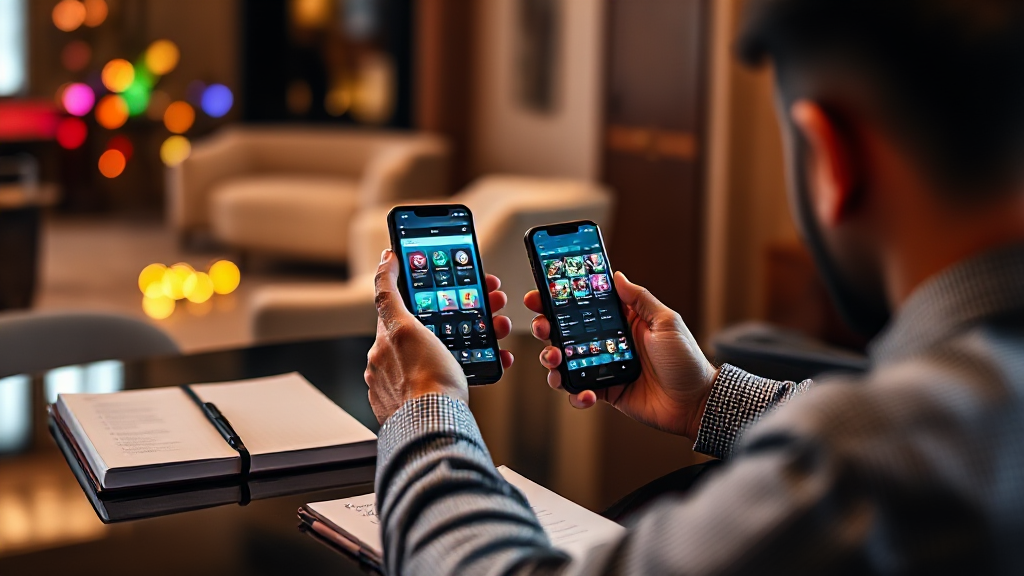
Why Does My tk999 Setup Feel Different on Another Phone?
You install the app on your own phone, get comfortable, learn where everything sits, and then you pick up a friend’s handset or buy a new device. Suddenly the same account behaves differently. Buttons appear in other places, notifications arrive late, and a deposit that used to take seconds now seems to hang. Nothing is broken. You are just looking at the same platform through a different device, a different network, and a different set of permissions. I have gone through this routine more times than I can count, and it almost always comes down to a handful of settings rather than anything wrong with the account itself. If you use tk999 on more than one device, the steps below are the exact order I follow to get every phone behaving the same way.
1. Confirm You Are on the Official App Before Anything Else
The first thing I check is not a setting at all. It is the source of the app. When a setup feels wrong on a second device, the most common reason is that the app came from a different place than the first one. Someone shared an installer file, or an old download link was still sitting in a chat thread, and the version on the new phone is simply older or repackaged.
My routine is boring but reliable. I delete whatever is installed, clear the download folder, and install fresh from the official source. On the first device I note the version number in the settings screen, then I compare it on the second device. If the numbers do not match, I update before I touch anything else. Nine times out of ten, layout differences, missing menu items, and login quirks disappear at this point. Only after both phones show the same version do the remaining steps make sense, because you are finally comparing like with like instead of two different builds.
2. Match Account, Region and Language Settings
Once the app version matches, I look at the account layer. This is where a lot of confusion lives. A phone that was set up in a different language will sometimes reorder menus, shorten labels, or hide sections behind translated names that do not look familiar. The platform is the same, but your eyes are reading a different interface.
I open the profile section and check three things in order: the account details, the display language, and the region or currency shown on the dashboard. If the second phone is showing a different currency format or a language I did not choose, I switch it back to match the first device. Then I log out completely and log back in, because some preferences only apply after a fresh session. This single step explains most of the “my account looks different” complaints I hear, and it takes under two minutes. If the login screen itself looks unfamiliar, that is usually a sign you landed on a mirror page rather than the real one, so always type the address yourself instead of tapping an old bookmark.
3. Fix Notification and Battery Behaviour on Each Phone
This is the step people skip, and it is the one that causes the most frustration. Modern phones aggressively manage background apps to save battery. They will silently delay notifications, pause syncing, or kill a process the moment the screen turns off. On one handset the app may be whitelisted by default. On another it is treated as a battery drain and throttled.
My checklist here is short. I go into the battery settings and set the app to unrestricted or the equivalent wording on that device. I open the notification settings and confirm that alerts are allowed, that they are not set to silent, and that they are not grouped into a summary that only appears once an hour. I also check whether a system-wide “do not disturb” schedule is quietly running overnight. After changing any of these, I restart the phone rather than just closing the app, because some permissions only bind on boot. If notifications still lag, I test on mobile data instead of Wi-Fi to rule out a router-level issue before blaming the app.
4. Compare Network Conditions Instead of Assuming the App Is Slow
Speed complaints are almost never about the platform alone. They are about the path your phone takes to reach it. Two devices on the same Wi-Fi can behave very differently if one is on a congested band, using a VPN, or holding onto a weak signal from a distant router.
When something feels sluggish on the second phone, I run a quick comparison. I check the signal strength, switch between Wi-Fi and mobile data, and turn off any VPN or private DNS that might be routing traffic through another country. I also clear the app cache, which accumulates over weeks of use and can slow down menus noticeably. If the first phone is fine and the second is not, the difference is nearly always local: a weaker connection, a background download eating bandwidth, or a proxy sitting in the middle. Fixing the connection usually fixes the perceived app problem, and it costs nothing to test.
5. Keep Payments and Verification Consistent Across Devices
Payment methods are where small inconsistencies turn into real delays. A method that works smoothly on one phone may fail on another because the linked wallet app is outdated, the SIM is in a different slot, or the bank’s own security check triggers on an unfamiliar device.
I keep this simple. I use the same payment method on every device so the history stays clean and the platform recognises the pattern. Before making a deposit, I update the wallet or banking app, confirm the mobile number registered to it matches the number on my account, and make sure I am not on a public network. If a transaction fails, I wait for the pending state to clear before retrying, because repeated attempts can look suspicious and trigger a manual review. Verification documents only need to be uploaded once, but if a second device shows a “verify your account” prompt, I check whether the upload actually completed rather than submitting everything again. Duplicate submissions slow the process down for everyone.
6. Build a Repeatable Setup Routine and Use This Checklist
After doing this a few times, I stopped treating each new device as a fresh puzzle. Now I follow the same sequence every time, and the whole thing takes about ten minutes. The order matters because each step removes a variable, so you are never guessing at two problems at once.
Here is the checklist I actually use, in the order I run it:
1. Install from the official source and confirm the version number matches your main device.
2. Check account details, display language, and region or currency, then log out and back in.
3. Set battery usage to unrestricted and confirm notifications are allowed and not silenced.
4. Restart the phone so new permissions take effect.
5. Test the connection on both Wi-Fi and mobile data, and disable any VPN or private DNS.
6. Clear the app cache if menus feel slow.
7. Confirm the payment method is updated and the registered number matches your account.
8. Re-check verification status only if prompted, and never resubmit completed documents.
Where devices genuinely differ is in how much control the manufacturer gives you. Some phones bury battery settings three menus deep, others surface them immediately. Some allow per-app notification channels, others lump everything together. That is why copying settings blindly from one phone to another rarely works. You have to find the equivalent switch on each device, even when the wording changes. Once you know where those switches live on your own handsets, the routine becomes muscle memory, and a new phone stops being a problem.
Frequently Asked Questions
Why does the app look different on my second phone?
Almost always because of one of three things: a different app version, a different display language, or a different screen size and aspect ratio. Start by matching the version number, then match the language and region settings, and log out and back in. If the layout still differs after that, it is usually just the phone adapting the interface to a smaller or larger screen, which is normal and does not affect how the account works.
Do I need to register again on a new device?
No. Your account is tied to your login details, not to the handset. Install the app, sign in with the same credentials, and everything carries over. If you are asked to verify again, check whether a previous verification was actually completed before uploading anything new, because duplicate submissions can delay the review rather than speed it up.
Why are notifications delayed on one phone but not the other?
Battery optimisation is the usual culprit. Phones throttle background apps to save power, and the setting differs between manufacturers. Set the app to unrestricted in battery settings, confirm notifications are allowed and not silenced, then restart the device. If the problem continues, test on mobile data to rule out a Wi-Fi or router issue.
Is it safe to use the same account on multiple devices?
It is fine as long as you are the one signing in. The risk comes from sharing credentials, using unknown installer files, or logging in over public networks. Keep the app updated from the official source, avoid public Wi-Fi for anything involving payments, and change your password if you ever suspect someone else has accessed the account.
What should I check first if a deposit fails on a new phone?
Check the payment app first. Make sure it is updated, that the registered mobile number matches your account, and that you are on a stable private connection. If a transaction shows as pending, wait for it to clear before trying again. Repeated retries are the most common reason a simple payment turns into a manual review.
